Podcasts
The Podcasts page allows you add subscriptions to podcasts which are often used to syndicated audio files using a URL called a RSS feed. This allows your LibreTime instance to automatically download new shows from the web.
All podcasts available on iTunes have a RSS feed but it's sometimes hidden. See issue #510 for more information. RSS feeds that don't end in .xml may be accepted by LibreTime yet fail to download episodes. A work-around is to download the episode using a podcast client such as gpodder and then manually upload and schedule the episode.
Podcast feeds coming from Anchor.fm have been known to have a similar issue.
The podcast interfaces provides you with the ability to generate Smartblocks that can be used in conjunction with autoloading playlists to schedule the newest episode of a podcast without human intervention.
Podcasts dashboard
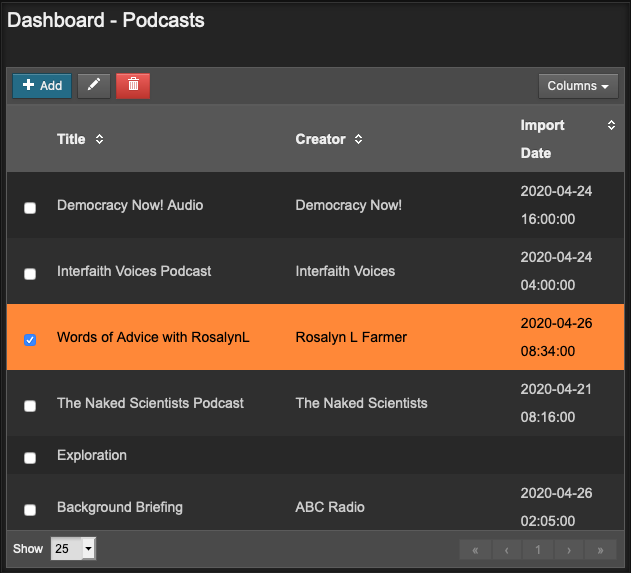
The podcasts dashboard is similar to the tracks view, allowing you to add, edit, and remove podcasts by the toolbar, in addition to sorting by columns.
To add a podcast, click on the + Add button on the toolbar and provide the podcast's RSS feed, which usually ends in .xml. Once the podcast's feed is recognized, the editor pane opens for the podcast.
Editor
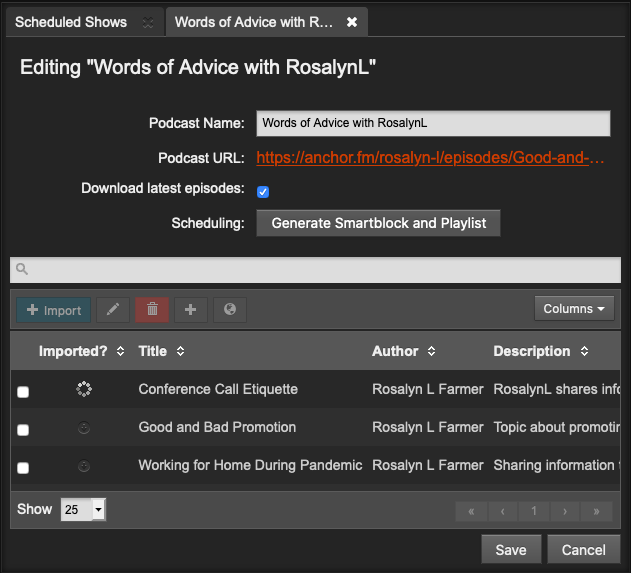
In the podcasts editor, you can rename the podcast, update settings for the podcast, and manage episodes. A search box is available to search for episodes within the feed.
- To import an episode directly into LibreTime, double-click on an episode or select it and click + Import. The podcast will appear under tracks with the Podcast Name as the Album.
- To delete an episode from LibreTime, select the episode and click on the red trash can on the toolbar.
- If you would like LibreTime to automatically download the latest episodes of a podcast, make sure Download latest episodes is checked. This can be used in conjunction with Smartblocks and Playlists to automate downloading and scheduling shows that are received via podcast feed.